I used to spend my mornings like a digital archaeologist. Digging through Slack threads to find that one decision from Tuesday. Scrolling through meeting notes trying to remember what the client actually wanted. Copy-pasting chunks of emails into ChatGPT just to get a coherent response. By 10 AM, I’d burned through thirty minutes of actual thinking time just trying to reconstruct what I already knew.
This is the hidden tax of modern knowledge work. We’re not tired of working—we’re tired of remembering where we left things.
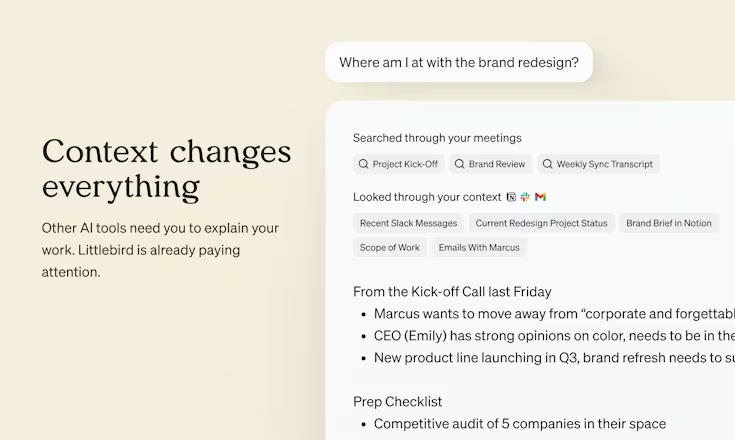
That’s exactly the problem Littlebird AI aims to solve. Unlike typical AI assistants that greet you with a blank slate every morning, Littlebird pays attention to what you’re actually doing. It reads your screen (yes, really), transcribes your meetings, and builds a private memory of your digital life. No integrations. No copy-paste gymnastics. Just an AI that actually knows what you worked on yesterday.
But does ambient context capture actually make you more productive, or does it just create a new privacy anxiety? I spent two weeks with Littlebird running on my Mac to find out.
What Is Littlebird AI?
Most AI tools are like brilliant amnesiacs. They can write code, analyze data, and generate marketing copy—but they start every conversation with zero memory of your actual work. You become a context courier, constantly shuttling information between apps and chat windows.
Littlebird takes a fundamentally different approach. It’s designed as a full context AI assistant that builds awareness by seeing what you see
. Rather than waiting for you to upload documents or paste email threads, it actively reads the text and interface elements of whatever window is currently active on your screen. During meetings, it listens via system audio to take notes automatically.
The result is a unified memory layer that connects your meetings, documents, browser tabs, and conversations without requiring any setup or API connections
. When you ask Littlebird “What did Sarah say about the Q2 budget in last week’s call?” it doesn’t search a siloed database—it pulls from your actual meeting transcript, the follow-up email you drafted, and the spreadsheet you had open during the conversation.
This isn’t screen recording in the traditional sense. Littlebird specifically captures text and UI elements rather than visual screenshots, which makes the data lighter, more searchable, and less storage-intensive than tools like Rewind (now Limitless)
. It also never captures minimized apps, private browser windows, password fields, or sensitive information you can’t actually see on your screen
Who Is Littlebird Actually For?
Littlebird isn’t trying to replace ChatGPT for creative writing or Jasper for long-form content. Its sweet spot is high-volume knowledge workers who constantly context-switch. After testing, I’ve identified three personas who benefit most:
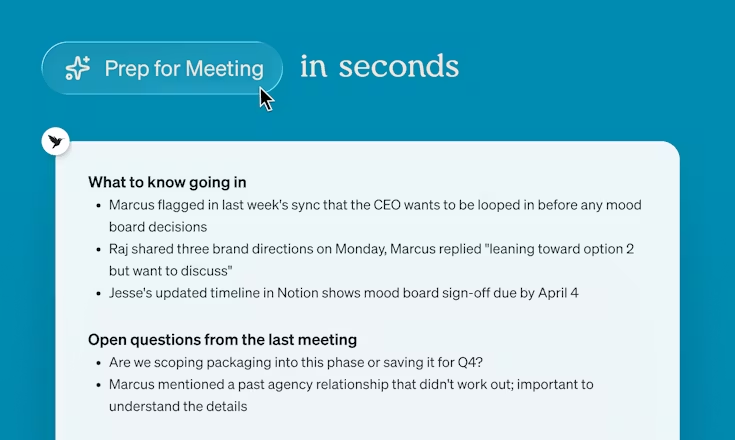
The Meeting-Heavy Manager If your calendar looks like a game of Tetris, Littlebird’s meeting prep feature is genuinely transformative. Before my 2 PM product review, I asked it to prep me—and it surfaced relevant threads from Slack, summarized our previous meeting’s decisions, and even flagged an email from the client sent that morning. I walked in knowing exactly where we stood without manually checking three different apps
The Cross-Functional Project Lead When you’re coordinating between engineering, design, and sales, information lives in silos. Littlebird’s ability to recall “that thing someone mentioned in Zoom last week” without you tagging it or taking notes is invaluable. One user described it as having a “chief of staff who writes you a memo before you’ve had coffee”
The Research-Intense Creator Writers, analysts, and strategists who accumulate dozens of browser tabs, PDFs, and notes will appreciate the ambient memory. I asked Littlebird to outline a weekend trip based on flight tabs and articles I’d browsed earlier. It synthesized my own research into a coherent itinerary—something that would have required manual bookmark review or copy-pasting into a doc otherwise
However, if you’re a developer looking for code-specific assistance or a writer needing long-form editorial control, tools like Cursor or Jasper still outperform Littlebird. This is a workflow organizer, not a specialized creation tool
Key Features That Actually Matter
Screen-Aware Context Capture (No Integrations Required)
The headline feature is deceptively simple: Littlebird works immediately upon installation without connecting to Slack, Gmail, Notion, or any other app
Because it reads screen text rather than API feeds, it sees your work across any application—even niche tools or internal dashboards.
Why it matters: You’re not waiting for IT to approve another integration. You’re not mapping data flows. It just works across your entire stack, including apps that will never have public APIs.
Intelligent Meeting Notes That Connect to Everything
Littlebird’s built-in meeting transcription (similar to Granola) doesn’t just create isolated summaries. It feeds meeting content into your broader memory, making conversations searchable alongside your documents and emails. The “Prep for meeting” feature pulls context from previous calls, shared docs, and even external sources like Reddit to brief you before conversations
Why it matters: Most meeting tools (Otter, Fireflies) trap your notes in a separate silo. Littlebird makes meetings part of your searchable second brain.
Automated Routines and Daily Briefings
You can set up scheduled workflows—like a Monday morning briefing that summarizes last week’s priorities, flags unresolved threads, and surfaces action items. This moves Littlebird from reactive (you ask, it answers) to proactive (it brings you intelligence before you know you need it)
Why it matters: This is the difference between an assistant and a search engine. Littlebird is learning to tap you on the shoulder at the right moment.
Granular Privacy Controls
Littlebird is SOC 2 certified, GDPR/CCPA compliant, and encrypts data on AWS Crucially, you can pause context collection instantly, exclude specific apps (it auto-ignores password managers), or delete data granularly—everything, last hour, or last day They explicitly state they never use your data to train AI models
Why it matters: Context-aware AI is useless if you can’t trust it with sensitive work. The granular deletion controls (erase just the last hour if you viewed something personal) show thoughtful privacy design.
How Littlebird Compares to Alternatives
Table
Read.ai is Littlebird’s closest competitor, offering cross-channel AI that connects meetings, emails, and messages. However, Read requires explicit integrations and functions more like a traditional connected platform. Littlebird’s screen-reading approach means it captures work in apps Read will never integrate with—your Figma files, internal CRM, or that random wiki tool your team uses.
Otter.ai remains the king of pure transcription accuracy and collaborative editing, but it’s strictly a meeting archive tool. It won’t help you draft an email based on your recent research or prep you for a call using last week’s context.
My Hands-On Experience: The Good, The Weird, and The Honest Truth
I installed Littlebird on my MacBook Pro and let it run for fourteen days during real work—client calls, writing, research, Slack conversations, and planning sessions.
The “Aha” Moment
Day three. I had back-to-back meetings with two different clients. Before the second call, I opened Littlebird and asked, “Prep me for my 2 PM.” It pulled the project history from emails I’d sent that morning, referenced a decision from our previous Zoom call (which I hadn’t tagged or noted), and reminded me about a deadline mentioned in a Slack thread I’d briefly clicked. Total prep time: thirty seconds instead of ten minutes of manual searching.
The Daily Reality
Littlebird runs quietly in the menu bar. You invoke it with a double-tap of the Option key, and it appears as an overlay on whatever you’re working on. This “help without switching apps” design is subtle but powerful—I could ask questions about a Google Doc without leaving the doc itself.
The daily journal feature automatically generated surprisingly accurate summaries of my workday. Not just “you were in Chrome,” but “you drafted the Q3 strategy doc and reviewed the design mockups in Figma.” It was slightly unnerving how well it categorized my activities, but also genuinely useful for time tracking.
The Limitations
Littlebird is currently Mac-only, with Windows support still in waitlist mode. The mobile companion apps (iOS/Android) exist but feel limited—you can query your memory, but the full context capture only works on desktop.
During heavy video editing in Final Cut Pro, I noticed minor battery drain. It’s not a resource hog, but it’s not invisible either. And while the privacy controls are robust, the psychological adjustment of having something “watch” your screen takes a few days. I found myself pausing it when checking personal email out of habit, even though it auto-ignores private browsing.
Pros & Cons TableTable
| Pros | Cons |
|---|---|
| Zero setup, works across all apps immediately | Mac only (Windows coming soon) |
| Meeting prep saves 10-15 min per call | Requires trust in screen-reading approach |
| Context-aware writing actually sounds like me | Occasional battery impact during heavy use |
| Granular privacy controls (pause/delete anytime) | Mobile apps limited vs desktop |
| No integration maintenance or API breaks | Still refining some features in beta |
Common Misconceptions (And The Truth)
“It records everything like spyware.” False. Littlebird reads text elements of active windows only—no screenshots, no video recording, no minimized app snooping. It literally cannot see what you can’t see. Compared to tools like Microsoft Recall or Rewind that stored visual screenshots, Littlebird’s text-based approach is significantly more privacy-preserving.
“I need to connect all my accounts for it to work.” Nope. This is the biggest misconception. Littlebird’s core value proposition is that it doesn’t require integrations. While you can connect Google Calendar for scheduling features, the memory and context capture work immediately upon installation because it reads your screen, not your APIs.
“It’s just another meeting notetaker.” Meeting transcription is maybe 20% of what Littlebird does. The other 80% is the context layer—connecting those meeting notes to your documents, emails, and browsing history to create a searchable knowledge graph. Otter takes meeting notes. Littlebird tells you what those notes mean in context.
Pro Tips & Hidden Tricks Most Users Miss
1. The “Last Hour” Delete Shortcut Accidentally viewed sensitive info? Hit the pause button and delete just the last hour’s context. You don’t need to wipe your entire memory. I use this when switching between client projects to ensure no cross-contamination.
2. Meeting Prep Magic Don’t just ask “Prep me.” Ask specific questions like “What objections did they raise last time?” or “What’s the status of the budget discussion?” The more specific your prompt, the better it mines your context.
3. Routines for Weekly Reviews Set up a Monday morning routine that asks: “What commitments did I make last week that I haven’t followed up on?” This catches the “oh crap” moments before they become “oh no” moments.
4. The Option Key Double-Tap This overlay mode keeps you in flow. Instead of cmd-tabbing to a separate app, the chat floats over your current work. It’s a small UX choice that makes a massive difference in staying focused.
5. Use It for Personal Life Too I asked it to plan a birthday dinner based on restaurant tabs I’d left open and text conversations with my partner. It created a reservation-ready plan with context about dietary preferences mentioned weeks ago in Messages.
Pricing Breakdown: Is It Worth It?
Littlebird is currently free during beta, with paid plans starting at $20 per month once the beta ends. There’s also a ProductHunt promotion offering 50% off for three months.
The Value Calculation: If Littlebird saves you 15 minutes of “archaeology” per day (searching for context, prepping for meetings, reconstructing decisions), that’s 5+ hours per month. At $20/month, you’re paying roughly $4 per hour saved. For anyone billing over $25/hour, it’s a trivial ROI.
Who Should Pay:
- Consultants who bill for strategic thinking, not information retrieval
- Managers with 15+ hours of meetings weekly
- Anyone who works across 5+ different tools daily
Who Should Skip:
- If your work lives entirely in one app (Notion, Linear, etc.), you don’t need universal context
- If you’re on Windows and can’t wait for the waitlist
- If you’re paranoid about any screen-reading tech regardless of privacy controls
Final Verdict: Should You Use Littlebird?
Littlebird represents a genuine paradigm shift from “AI as generator” to “AI as memory layer.” It won’t replace your specialized writing tools or your code assistant. What it replaces is the cognitive load of context switching—the mental tax of remembering where you left information across dozens of apps.
Use it if: You constantly find yourself saying “where did I see that?” or spending mornings reconstructing yesterday’s context. If your work is fragmented across email, Slack, Zoom, Google Docs, and browser tabs, Littlebird stitches it back together.
Skip it if: You need long-form content generation, deep creative writing assistance, or work primarily in one integrated platform. Also skip if you’re not comfortable with the trust relationship required—effective use means letting it see your work.
After two weeks, Littlebird has earned a permanent spot in my menu bar. It’s not perfect—the mobile experience needs work, and I want better Windows support for my team—but the core promise of ambient context awareness delivers real, measurable time savings. In an era where AI tools are desperate for your attention, Littlebird’s greatest feature might be that it works best when you forget it’s there.
Visit — Littlebird