 ProductReveal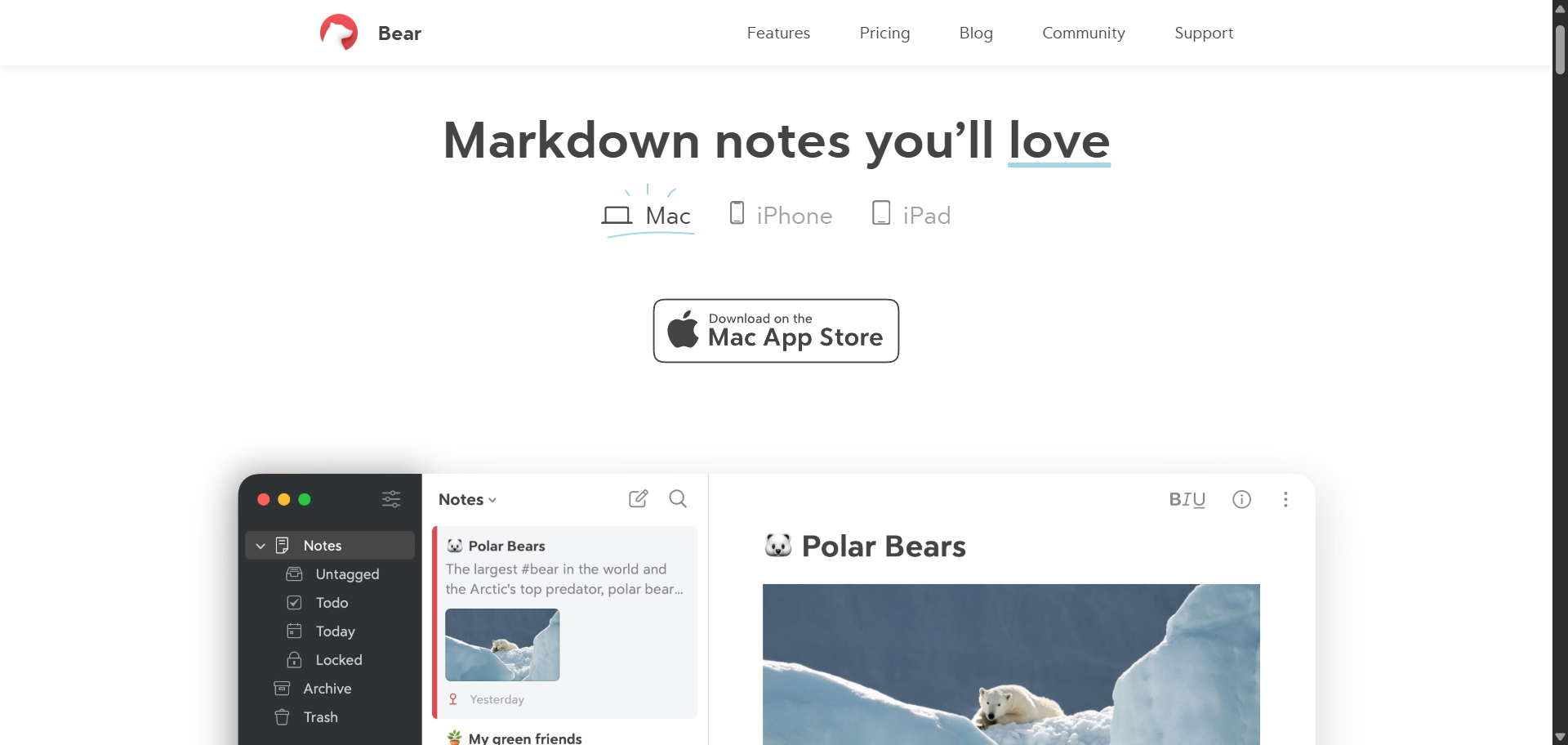
There's a particular kind of frustration that productive people know well: you open your note-taking app to capture a thought, and then spend the next four minutes hunting for the right folder, adjusting formatting, or dealing with a sluggish sync. By the time you're ready to write, the idea has half-dissolved.
Bear was built around the philosophy that this shouldn't happen. It's a note-taking application developed exclusively for Apple's ecosystem — iPhone, iPad, Mac, and Apple Watch — with a sharp focus on markdown editing, clean design, and getting out of the user's way. No databases. No heavy-duty project management. No cluttered sidebars fighting for your attention. Just writing, organized intelligently.
I've spent considerable time with Bear across multiple devices, comparing it against competitors, exploring its quirks, and pushing it through real work scenarios — from drafting long-form articles to managing research notes for complex projects. This review is the result of that process: an honest, thorough evaluation for anyone trying to decide whether Bear deserves a place in their daily workflow.
The short answer is that Bear is genuinely excellent for a specific type of user. Whether that user is you depends on factors this review will explore in depth.
What Is Bear?
Bear is a markdown-first note-taking application designed exclusively for Apple devices. It positions itself somewhere between a lightweight text editor and a structured note-taking system, without trying to be a full project manager or database tool.
What distinguishes Bear from something like Apple Notes is the depth of its markdown implementation. Bear supports a wide range of markdown syntax natively, renders it inline (so headers look like headers while you type, not just when you preview), and extends the standard with some genuinely thoughtful additions. It also replaces traditional folder-based organization with a hashtag system that's more flexible than it sounds initially.
Bear is not trying to be Notion. It won't manage your CRM, build Kanban boards, or host your team's wiki. What it does — focused, distraction-free markdown note-taking with smart organization and deep Apple integration — it does exceptionally well.
Company Background
Bear is developed by Shiny Frog, a small Italian software studio based in Parma. Shiny Frog has been building Apple software since 2009, and Bear launched publicly in 2016. The app won an Apple Design Award in 2017, which is a meaningful indicator of both its visual quality and its technical execution on Apple platforms.
The team is small — not a venture-backed startup with hundreds of engineers — and that shows in both the app's focused scope and its update cadence. Bear 2.0 launched in 2023 as a significant update, introducing a redesigned editor, improved markdown handling, and expanded customization options. Shiny Frog has demonstrated a willingness to commit to major revisions, which matters when you're considering an app for long-term use.
Being a small, bootstrapped studio carries implications: Bear is unlikely to get acquired by a tech giant and discontinued, but it also means feature development moves at a measured pace. That's not a criticism — it's a trade-off worth understanding.
Who Should Use Bear?
Bear is a strong match for:
Writers and journalists who work in markdown and want a clean drafting environment on Mac and iPhone
Students who take notes in class on iPhone and review or expand them on Mac later
Developers who want to keep personal notes and code snippets in a markdown-native environment
Researchers who need to capture sources, connect ideas through backlinks, and export structured notes
Anyone deeply embedded in Apple's ecosystem who wants sync to "just work" without configuring external servers
People who tried Notion and found it overwhelming for personal note-taking
Minimalists who want powerful features without visual clutter
Who Should Avoid Bear?
Bear is a poor fit for:
Windows or Android users — the app simply doesn't exist on those platforms
Teams needing real-time collaboration — Bear has no collaborative editing or shared workspaces
Users wanting a web clipper — Bear doesn't have a browser extension for web content capture the way Evernote does
People who prefer folder-based organization — Bear's tag system is elegant, but if you think in strict hierarchies, the mental shift can be jarring
Users who need a free tier with full sync — you'll hit the sync paywall relatively quickly
Database and project management needs — Bear is notes, not project management
First Impressions
Opening Bear for the first time is a genuinely pleasant experience, which sounds like faint praise but is rarer than it should be in productivity software. The three-panel layout — tag sidebar on the left, note list in the middle, editor on the right — is immediately intuitive without requiring a tutorial.
The app defaults to a warm, cream-toned theme called "Bear" (appropriately), and the typography choices create a writing environment that feels considered rather than corporate. Within thirty seconds of installing, you can start typing and the app's personality becomes clear: it wants you to write, and everything is arranged to support that.
The onboarding is handled through a welcome note in the editor itself, which walks you through basic formatting. It's clever because it doubles as a markdown demonstration — by the time you've read through it, you've already seen most of what Bear's formatting can do.
What you notice early on is what's absent: there are no prominent ads for premium features, no aggressive popup asking you to upgrade, and no confusing dashboard. Bear trusts users to explore at their own pace.
User Interface and Writing Experience
Bear's interface deserves more credit than it typically receives in reviews that rush past it to discuss feature specs. The writing experience is the product. Everything else serves it.
The editor uses what Bear calls "inline markdown rendering" — which means when you type **bold**, the asterisks disappear and the text goes bold immediately. You're not toggling between edit and preview modes the way older markdown tools required. This feels natural within a few minutes, even if you're coming from a plain text editor where you're accustomed to seeing the syntax.
Line spacing, paragraph margins, and font choices are all configurable within a reasonable range. Bear ships with multiple fonts — including options well-suited for long reading sessions — and lets you adjust the editor width. For anyone who writes for extended periods, the ability to control line length matters for readability and reduces eye strain.
The focus mode is worth enabling for serious writing sessions. It dims everything except the current paragraph, which sounds gimmicky until you experience how effectively it kills the urge to scroll up and edit what you've already written. It's a small feature that has a disproportionate impact on sustained concentration.
One underappreciated detail: Bear doesn't use an undo stack that breaks in mysterious ways. This is more than a trivial complaint with some apps — losing paragraphs to a broken undo has derailed actual writing sessions in competitive apps. Bear's undo behavior is predictable and reliable.
Markdown Editing Experience
Bear's markdown implementation is one of its strongest arguments for existing. It supports standard CommonMark syntax but extends it with several additions that become genuinely useful over time.
What works particularly well:
Bear handles code blocks properly, with syntax highlighting for a substantial list of programming languages. Developers who keep notes about scripts, commands, or code snippets will find this immediately useful — no more losing formatting when you paste a bash script into your notes.
Tables are supported natively in Bear 2.0, which addressed a long-standing gap from the original version. The table editing experience is better than in many competitors that technically support tables but treat them as a pain to create.
Headers render with visual hierarchy that's strong enough to navigate long documents. Bear also generates a table of contents automatically for notes that use multiple header levels, accessible via a button at the bottom of the editor. For notes that double as structured documents — research outlines, long articles in progress, documentation — this is genuinely useful.
Bear also supports ==highlighted text== syntax for highlighting, task checkboxes, and its own wiki-link syntax ([[note title]]) for linking between notes. The task checkbox behavior is particularly nice: checking off items is smooth, and you can filter notes by task completion status.
Where markdown could be stronger:
Bear doesn't support every extended markdown feature. If you rely heavily on definition lists, footnotes, or advanced table syntax, you'll occasionally encounter limitations. It's not a complete markdown implementation in the academic sense, but it covers everything most writers need day-to-day.
Note Organization: Tags, Nested Tags, and Backlinks
Bear's organizational system is the aspect that divides opinion most sharply, and it's worth taking time to understand it properly before deciding whether it suits your brain.
The Tag System
Instead of folders, Bear uses hashtags placed anywhere within a note. Type #project/client-name inside a note, and that note immediately appears under a nested tag structure in the sidebar. The tag becomes part of the note's content, which means organization happens inline rather than through a separate metadata interface.
The nested tag system creates a de facto folder hierarchy. #writing/drafts and #writing/published create a "writing" parent tag with two children. You can go multiple levels deep. The sidebar renders these as an expandable tree that visually resembles a folder structure — so the transition isn't as jarring as the word "hashtags" might initially suggest.
What makes this genuinely useful rather than just quirky: a note can belong to multiple tags simultaneously without being duplicated. A note tagged with #research, #client-name, and #q4-projects appears in all three tag views. Traditional folders can't do this without creating shortcuts or duplicates.
Backlinks and Wiki Links
Bear supports [[note title]] syntax to link between notes. Tapping or clicking a wiki link navigates directly to that note, and Bear shows a list of backlinks at the bottom of each note — every other note that links to the current one.
For researchers and writers who are developing ideas across multiple notes, this is meaningful. It's not as richly featured as Obsidian's graph view and network of connections, but it provides the core value: you can see how ideas connect without manually maintaining a separate index.
Common Beginner Mistake
Many new Bear users try to replicate their old folder structure exactly using nested tags and become frustrated. The system works better when you let tags be descriptive and overlapping rather than forcing a strict single-hierarchy system. Allowing a note to have three or four relevant tags takes full advantage of the system's flexibility.
Search and Productivity Features
Bear's search is fast — genuinely fast in a way that matters. On a note library with several hundred notes, results appear as you type, with the search term highlighted in the note list. You can filter by tag, note creation date, and other metadata alongside text search.
The search syntax supports some useful operators. You can search for notes containing tasks, notes with attachments, notes with specific tags, or untagged notes. It's not quite as powerful as dedicated search tools, but it's meaningfully more capable than "text search only" implementations in competing apps.
One productivity feature that's easy to miss: the quick open shortcut (⌘ + O on Mac) lets you jump to any note by typing part of its title. If you know what note you're looking for, this is significantly faster than browsing the tag sidebar.
Bear also supports custom keyboard shortcuts for markdown formatting on Mac, which experienced keyboard-driven writers will appreciate. The iOS version handles markup shortcuts through an extended keyboard row above the standard keyboard.
Apple Ecosystem Integration
Bear's Apple integration goes meaningfully deeper than simply "available on iPhone and Mac."
Handoff works as expected — start a note on your iPhone and open your Mac to find it ready in the editor. iCloud sync happens quickly and reliably in day-to-day use, though it uses iCloud as the backend rather than a proprietary sync system.
Apple Watch support is genuinely useful for quick captures — you can dictate a note from your watch without pulling out your phone. For capturing quick thoughts while away from your devices, this is a legitimately practical feature rather than a checkbox gimmick.
The iOS share sheet integration means you can share content from Safari, Instapaper, or other apps directly into Bear. It's not a web clipper in the Evernote sense, but for sharing a URL with a brief note into Bear, it works smoothly.
Bear also respects system-level dark mode settings, automatically switching between light and dark themes when your system preference changes. Small detail, but it reflects the level of care with which the Apple platform integration is built.
Spotlight search on macOS indexes Bear notes, which means you can find Bear content without opening the app. This is a genuinely useful integration that saves time during research when you're not sure if a note exists.
Sync Across Devices
Sync in Bear is iCloud-based and requires Bear Pro for anything beyond a single device. This is the most significant free-tier limitation.
In practice, iCloud sync is reliable for individual users. Notes appear across devices typically within seconds to a few minutes depending on connectivity. There are no known persistent sync failure issues with Bear 2.0, and the app handles conflict resolution reasonably — though like any iCloud-dependent app, occasional sync hiccups can occur when iCloud itself has issues.
The decision to use iCloud as the sync backend is both a strength and a constraint. Strength: it requires no separate account, integrates deeply with Apple's security model, and requires no server-side trust in Shiny Frog specifically. Constraint: you can't sync to non-Apple devices, and users who have had negative experiences with iCloud reliability in other contexts may be skeptical.
For users outside Apple's ecosystem, this is a dealbreaker. There's simply no path to syncing Bear notes to a Windows machine or Android phone.
Privacy and Security
Bear's privacy stance is comparatively clean for a note-taking application. Notes are stored locally on your device and synced via iCloud, which means Shiny Frog does not have access to your note content. The company doesn't run its own sync servers, so there's no Bear account that could be breached to expose your notes.
iCloud sync can be end-to-end encrypted depending on your iCloud settings — specifically, enabling Advanced Data Protection in your Apple ID settings encrypts iCloud data including notes synced through iCloud, with keys that Apple itself cannot access.
Bear's privacy policy, which is publicly available on their website, is straightforward. The app collects minimal telemetry, and the policy is readable without requiring a law degree to interpret.
For users handling sensitive information — legal notes, medical records, private journals — the combination of local storage, iCloud sync, and optional Advanced Data Protection provides a meaningful level of privacy that cloud-first apps with proprietary servers often cannot match.
One practical limitation: Bear doesn't offer note-level password protection or per-note encryption within the app itself. If someone gains access to your unlocked device, they can read your Bear notes. Enable device-level passcode and Face ID/Touch ID, which should be standard practice regardless.
Export and Import Options
Bear handles export with more generosity than many apps at a similar price point.
Export formats include: Markdown (.md), PDF, HTML, DOCX (Word), RTF, Bear's own archive format, and plain text. For most writing workflows, this is comprehensive. A Markdown export is clean and properly formatted — not riddled with proprietary syntax that breaks in other markdown editors.
Importing supports common formats including Markdown files and Evernote exports (through .enex files). If you're migrating from Evernote, the import process is reasonably smooth, though Evernote's rich formatting and attachments don't always translate perfectly into markdown.
One important consideration for long-term users: your notes are stored in a documented, open format. A clean markdown export is readable by any text editor, giving you a genuine escape hatch if you ever decide to leave Bear. This matters more than many people realize when choosing a note-taking app — data portability is a long-term insurance policy.
A practical tip for writers: Bear's PDF export produces clean, well-typeset output suitable for sharing drafts with editors or clients. It's not a replacement for a full word processor, but for note-sharing purposes, the output is professional.
About the author
The ProductReveal editorial team writes original guides and reviews for makers.